

XQual Single Sign-On (SSO) lets your users log into XQual using the corporate identity they already have - no separate password to create, remember or reset.
Connect your existing identity provider once, and every user in your organization gets instant, secure access.
Connect your existing identity provider once, and every user in your organization gets instant, secure access.
- Works with OpenID Connect, SAML 2.0 and LDAP/Active Directory,
- Compatible with Okta, Microsoft Entra ID (Azure AD), Google Workspace, PingFederate, OneLogin, ADFS and any standards-compliant identity provider,
- Available for both Cloud SaaS and On-Premise deployments,
- Centralizes access control, enforces your existing MFA/security policies, and speeds up onboarding/offboarding,
- Available as an add-on module - see pricing below.
Few test management / ALM solutions on the market offer native, enterprise-grade SSO.
Most competitors require yet another separate login and password just for your test management tool - XQual is one of the few that lets you plug straight into your existing identity provider, out of the box.
Most competitors require yet another separate login and password just for your test management tool - XQual is one of the few that lets you plug straight into your existing identity provider, out of the box.
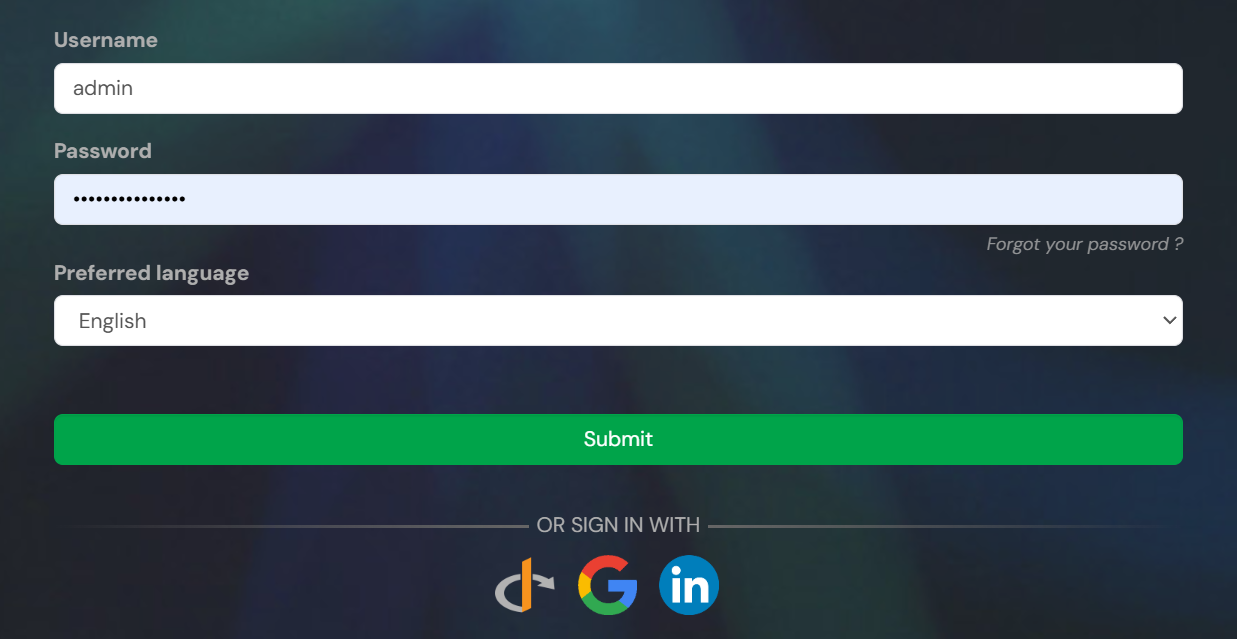
Sign in with your corporate identity provider, right from the XQual login screen
Why Single Sign-On
Less friction, more security- One-click login with the corporate credentials your users already have
- Centralized access control - grant or revoke access to XQual directly from your identity provider
- Inherits your organization's MFA and conditional access policies automatically
- Instant onboarding/offboarding - no more manually creating or deleting XQual accounts
- Fewer passwords to manage means fewer "forgot password" support tickets
- Centralized audit trail of who logged in, when and from where, from your own identity provider
Protocols
OpenID Connect, SAML 2.0, LDAP/AD- OpenID Connect (OIDC) - connect directly to Google Workspace, Microsoft Entra ID (Azure AD), LinkedIn or your own OIDC-compliant broker
- SAML 2.0 - connect your SAML2 identity provider (Okta, ADFS, PingFederate, OneLogin and more)
- LDAP / Active Directory - direct bind against your existing directory for the simplest possible login experience
- Per-customer isolated configuration - your identity provider settings are never shared with any other XQual customer
- Works the same way whether XQual is hosted as SaaS or installed on-premise
Who is this for
Built for enterprise IT requirements- Enterprise and mid-market organizations with an existing corporate identity provider
- Regulated industries (healthcare, finance, defense, aeronautics, public sector) that need centralized access control and audit trails for compliance
- IT/security teams enforcing a company-wide SSO policy across every SaaS tool
- Growing QA/test teams that want to avoid managing yet another separate password
- Both Cloud SaaS and On-Premise XQual customers
Step-by-Step: Connecting via OpenID Connect
XQual's OpenID Connect connector works with any compliant identity provider - here are three concrete exampleshttps://xqual.acme.com/ - replace this URL with your own server's address throughout.
 Generic OpenID Connect
If your identity provider or broker (Keycloak, PingFederate, Auth0, Microsoft Entra ID / Azure AD, or any other OpenID Connect compliant system) is not Google or LinkedIn, XQual can still connect to it directly.
- Refer to your OpenID Connect compatible IdP or Broker's own documentation to learn how to create a client, and register the exact redirect URI:
https://xqual.acme.com/xqual/delegate. - In XQual's SSO settings, create a new OpenID Connect connector.
- Enter the URL of your IdP/Broker as the Identity Provider URL.
- Enter the Key and Secret generated by your IdP/Broker.
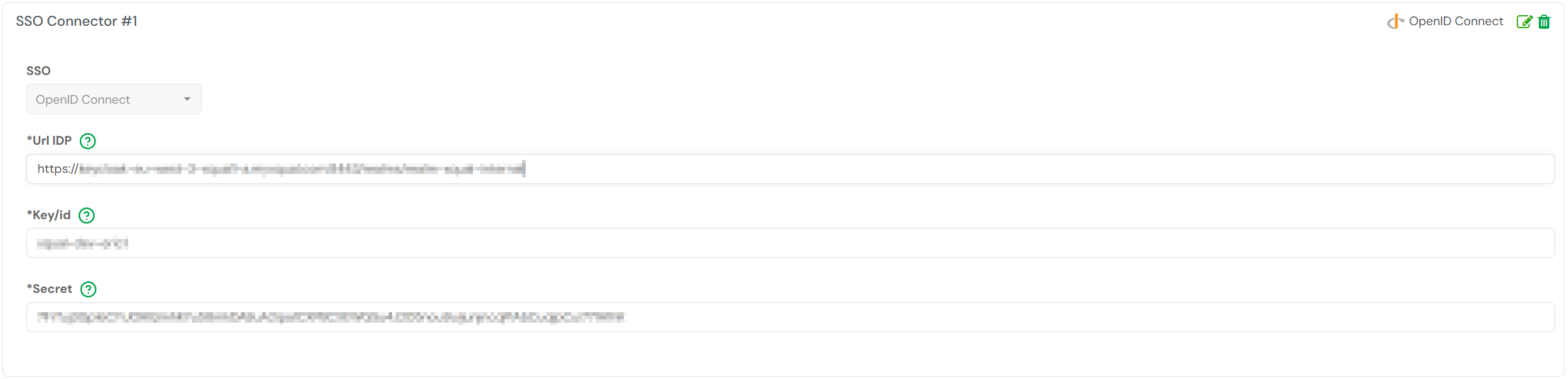
A generic OpenID Connect connector, pointing to a custom IdP or broker
 Connecting Google
- Sign in to the Google Cloud Console and select (or create) the Google Cloud project you want to use for authentication.
- Go to APIs & Services > Credentials.
- Click Create Credentials > OAuth client ID.
- For Application type, select Web application, and give it a recognizable name, e.g.
xqual-acme. - Under Authorized redirect URIs, add the exact URL:
https://xqual.acme.com/xqual/delegate. This must match XQual's redirect endpoint character-for-character. - Click Create. Google generates a Client ID (ending in
.apps.googleusercontent.com) and a Client Secret (starting withGOCSPX-). - If this is a new Google Cloud project, you'll also need to configure the OAuth consent screen (add test users, or publish the app) before login works end-to-end.
- In XQual's SSO settings, create a new OpenID Connect connector, select Google as the provider - its Identity Provider URL is preconfigured and cannot be edited - and enter the Client ID as the Key and the Client Secret as the Secret.
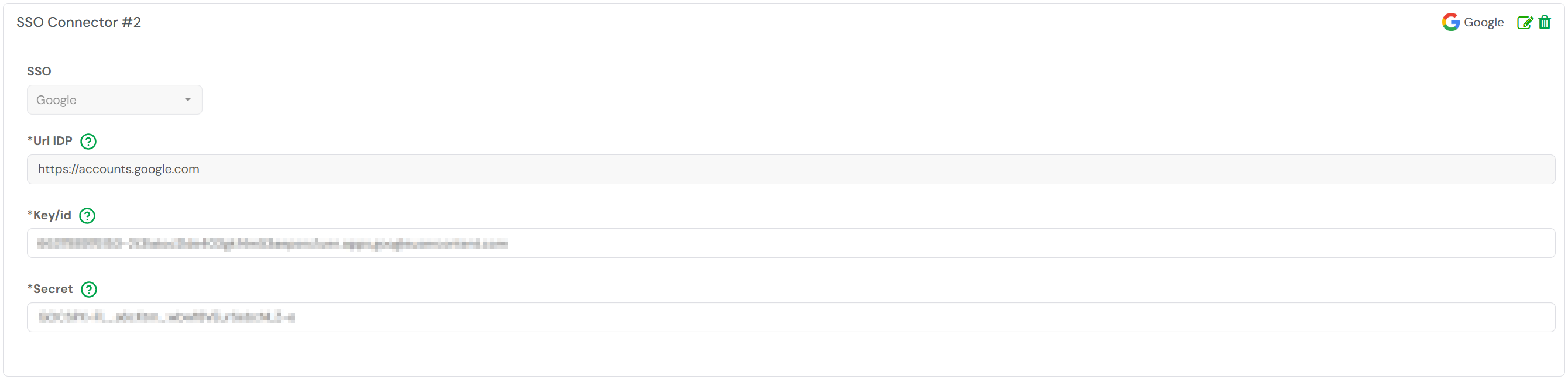
The Google connector configured in XQual's SSO settings
 Connecting LinkedIn
- Go to the LinkedIn Developer Portal and click Create app. LinkedIn requires every app to be associated with a LinkedIn Company Page - have one ready (or create one) before starting.
- Fill in the app details: an App name (e.g.
xqual-acme), your company's LinkedIn Page, and a logo (required by LinkedIn). - Once the app is created, go to the Products tab and request access to "Sign In with LinkedIn using OpenID Connect".
- Go to the Auth tab, then OAuth 2.0 settings, and add the exact Authorized redirect URL:
https://xqual.acme.com/xqual/delegate. - Still on the Auth tab, copy the Client ID and Client Secret LinkedIn generated for the app.
- In XQual's SSO settings, create a new OpenID Connect connector, select LinkedIn as the provider - its Identity Provider URL is preconfigured and cannot be edited - and enter the Client ID as the Key and the Client Secret as the Secret.
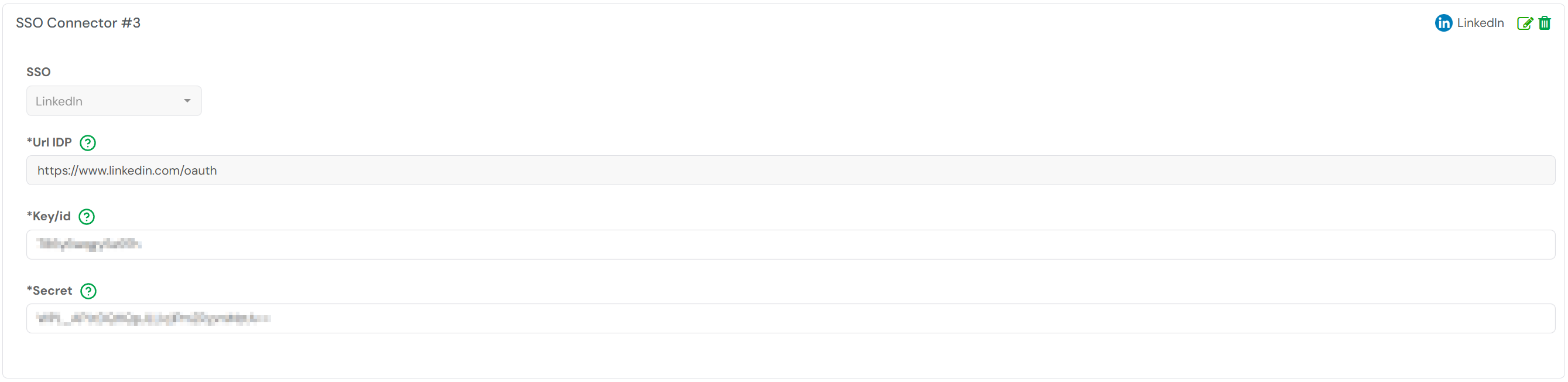
The LinkedIn connector configured in XQual's SSO settings
Important: for both providers, the redirect URI you register must match, character for character, the one XQual exposes for your server (
https://<your-server>/xqual/delegate). A mismatch is the most common cause of a failed OIDC connection.