

- Introduction
- Manual testing
- Autoit
- Ant
- Agilitest
- Bat
- Bat With Params
- Beanshell
- Cerberus
- Cucumber
- Cucumber v2 (BDD & Gherkin support)
- eTASQ Motion (Ponant)
- Executable
- FitNesse
- Gatling
- Generic Version-Control
- Git, Gitlab, Github
- Gradle
- Java
- Jar
- JMeter
- JMeter SQL
- JMeter Web
- JUnit
- Katalon
- Katalon v2
- Marathon
- Maven
- Mocha
- NeoLoad
- NUnit
- Odin Axe
- Odin Axe Results
- Offline
- Perl
- PHPUnit
- Postman (Newman)
- Protractor
- Python
- PyUnit
- PyTest
- QF-Test
- Quick Test Pro/UFT
- Ranorex
- Rapise
- RobotFramework
- RobotFramework v2
- RobotFramework v3
- RobotFramework v4
- Sahi
- Sahi 3.5
- Sahi 4.0
- Sahi 6.0
- Selenese
- Selenium HTML
- Selenium 3
- Selenium Java
- Selenium .NET
- Selenium Python
- Shell
- Sikuli
- SikuliX
- SilkTest
- SoapUI
- SoapUI Load
- SoapUI Security
- SOATest
- SQL Compare
- SQL Select
- Squish
- SVN (Subversion)
- Tape
- Tcl
- TestComplete
- TestComplete v2
- TestExecute
- TestExecute v2
- TestNG
- TestOptimal
- TestOptimal Simple
- TestPartner
- TestStand
- VisualStudio
- VisualStudio Coded UI
- WAPT
- WebdriverIO
- WebUI
- XCI
- xUnit.net
- Success (skeleton)
- Random (skeleton)
- Proxy
JMeter launcher (jmeter.jar)
The JMeter launcher allows running .jmx tests on web sites.It has been tested with JMeter v2.4.
Configuration
Thejmeter.xml file is just a template and must NOT be edited. It's used by the system to build dynamically the form that the user will be able to fill in from the GUI when creating a custom execution configuration.| Parameter | Description |
| General | |
| Java install path | This must indicate the path to the java install. Default value is: C:/Program Files/Java/jdk1.6.0_17
|
| Test root path | This must indicate where are located all the JMeter tests. This is a root path. Each test in XStudio has a canonical path that will be appended to this path. This path MUST not include an ending slash. Default value is: C:/test_repository/tests/jmeter
|
| JMeter | |
| JMeter install directory | This must indicate where JMeter has been installed. Default value is: C:/jakarta-jmeter-2.4
|
| Temporary folder | This must indicate the path of a folder where we are going to store temporary data. Default value is: C:/WINDOWS/Temp
|
These values can be changed while creating the campaign session from XStudio.
Note about file path parameters:
Any parameter referring to a file or folder path (for instance Test root path) can be provided either using
On windows, if you provide a path containing an OS-localizable folder such as
Any parameter referring to a file or folder path (for instance Test root path) can be provided either using
\ separator (if the tests are going to be executed on a Windows agent) or / separator (if the tests are going to be executed on a linux or MacOSX agent).On windows, if you provide a path containing an OS-localizable folder such as
C:\Program Files, always prefer the English version (i.e. NOT C:\Programmes if you're using a french-localized Windows) or the corresponding native environment variable (i.e. %PROGRAMFILES%).
Process
The launcher will first take care about running the JMeter server. Do NOT run the server by yourself.The tests must be named with the extension .jmx.
IMPORTANT: the JMeter launcher expects to get results in a .jtl file formatted in XML (and not CSV that is the default value but that contains less information).
You can ensure JMeter generates .jtl formatted in XML by checking in the
You can ensure JMeter generates .jtl formatted in XML by checking in the
bin/jmeter.properties file that the following property is present:jmeter.save.saveservice.output_format=xml
The test will be marked as passed or failed depending on the rc attributes measured in the .jtl file generated by JMeter.
By default, the test cases succeed except if at least one entry contains a rc value >= 300.
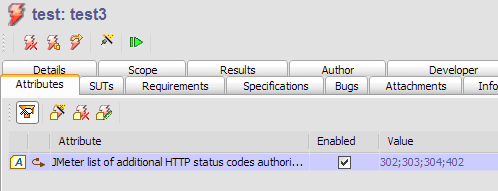
In some particular cases though, the test actually expects that an http error is returned. In this case, the logic can be refined by using an attribute called "
JMeter list of additional HTTP status codes authorized".
You can set set this attribute to some particular tests with different values.
This attribute must contain all the HTTP status code (';' separated) that must be considered as authorized for the test.
For instance:
Tutorial: Creating and executing JMeter tests
In this tutorial, we will learn to run some JMeter .jmx tests.Prerequisites
Install JMeter in the folderC:\\jakarta-jmeter-2.4Create a file
Test1.jmx with JMeter IDE and save it to the folder C:\\test_repository\\tests\\jmeter\\folder1.Create a dedicated category for JMeter tests and create a test
- create a category JMeter associated to the launcher jmeter.jar
- under this category, create (somewhere in the tree) a test with name Test1 and with a canonical path set to folder1.
Creating a test campaign
- create a campaign including only the test Test1
- create a campaign session using a configuration having all the default values.
Run a campaign session
Run the campaign sessionAfter the session's execution is completed, you can look at the results from XStudio:
- the messages indicate the status of the test
- you can also check that all the log files (including the JMX, the JTL and the log files) are attached
Permissions
WARNING: if you're running your tests on Windows, it may be required to run the tests as administrator.
Having an account with Administrators permissions may even not be enough in some cases (especially if you're using Windows 10) and you may need to disable completely the UAC (User Access Control) on your computer.
To do so:
Having an account with Administrators permissions may even not be enough in some cases (especially if you're using Windows 10) and you may need to disable completely the UAC (User Access Control) on your computer.
To do so:
- Press the
Windows + Rkey combination - Type in
regedit - Go to HKEY_LOCAL_MACHINE\SOFTWARE\Microsoft\Windows\CurrentVersion\Policies\System
- In the right-side pane, look for EnableLUA and set the value
0 - Close the registry editor
- Restart your computer
Debug
If your tests are not executed correctly or are reporting only failures, this is very likely because your configuration is incorrect or because you used a wrong naming convention for your tests and test cases.
The best way to quickly find out what's wrong is to look at the traces generated by XStudio (or XAgent).
The traces always include the detailed description of what the launcher performs (command line execution, script execution, API calling etc.) to run a test case. So, if you experiment some problems, the first thing to do is to activate the traces and look at what's happening when you run your tests.
Then, try to execute manually in a
This will normally fail the same way.
At this point, you needs to figure out what has to be changed in these commands in order to have them run properly.
When you have something working, compare these commands to what's described in the Process chapter above. This will tell you exactly what you need to change.
Most of the time, this is related to:
The best way to quickly find out what's wrong is to look at the traces generated by XStudio (or XAgent).
The traces always include the detailed description of what the launcher performs (command line execution, script execution, API calling etc.) to run a test case. So, if you experiment some problems, the first thing to do is to activate the traces and look at what's happening when you run your tests.
Then, try to execute manually in a
cmd box the exact same commands.This will normally fail the same way.
At this point, you needs to figure out what has to be changed in these commands in order to have them run properly.
When you have something working, compare these commands to what's described in the Process chapter above. This will tell you exactly what you need to change.
Most of the time, this is related to:
- some incorrect values in some parameters of your configuration,
- the name of your tests,
- the name of your test cases,
- the canonical path of your tests